
This guide will help you get started with WHMCS theme.
Here's a step-by-step guide to help you set up your WHMCS.
Overview
You're welcome!
Certainly! If you have any questions or need further assistance beyond the scope of this documentation, please don't hesitate to reach out to us. You can contact our support team using the links provided below.
Please ensure to include your website URL along with your inquiry to help us better understand and address your specific needs. We're here to help and are committed to ensuring your experience with the WHMCS theme is smooth and successful.
Contact UsPlease remember...
- Please note that any requests submitted during weekends or holidays will be addressed promptly on the next available business day. We value your time and aim to provide timely support to ensure a smooth experience with our WHMCS theme.
- We only provide support for the issues related to the features that are included in the template. Debugging or providing guides on how to make custom modifications are not part of our support. Thank you for understanding.
Installation
Follow the below steps to complete the WHMCS Theme installation completely:
We have professional WHMCS templates design with orderform. If you want to use [Purchased Theme Name, e.g., Erahost, Zhostv2, Closter] whmcs template then we need to follow the below steps to complete the template installation completely:
1. Upload the [Purchased Theme Name, e.g., Erahost, Zhostv2, Closter] to the templates folder
2. Add the redcheap_professional orderform to the orderforms folder
3. Add hooks to hooks folder
4. Configure your price from WHMCS admin panel
5. Change the default WHMCS template and orderform from admin panel
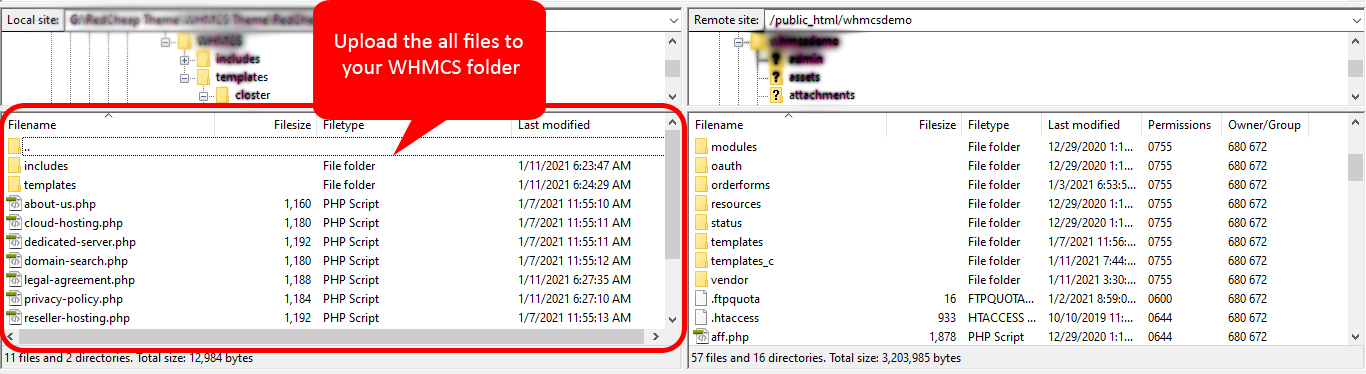
Add hooks to hooks folder
Add the hooks file in the hooks folder
- Go to the path: /< your-public-root-directory>/whmcs/includes/hooks
- Unzip the hooks folder if you have the zip version
- Add the hooks file in the hooks folder folder
Change Default Template and Orderforms
Change the default WHMCS template and orderform from admin panel. We can change our template and orderform from General setting but we can also set different orderform from the product group.
Change the default template from the general setting:
- Click the setting icon right side of the navbar then click the general setting
- Go to the general setting>general then select the template like [Purchased Theme Name, e.g., Erahost, Zhostv2, Closter]
Change the default Orderform from General setting:
- In this General settings click the tab Ordering then you can see the different types of the order form template. Now select the RedCheap Professional.
Configure your price
Configure your product or price from WHMCS admin panel
First of all, login your whmcs admin panel then click the setting icon right side of the navbar> products/services follow the steps:
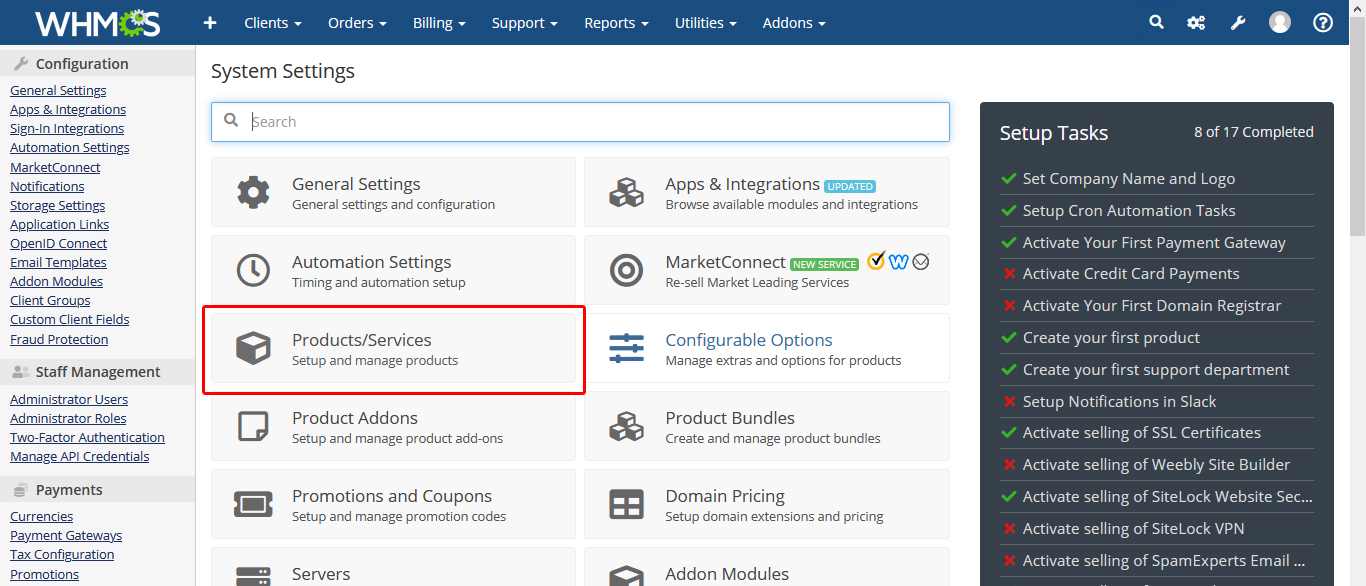
1. I hope you have already created product group name and under the group you have created single product package. If you don't have this package then you should create first.
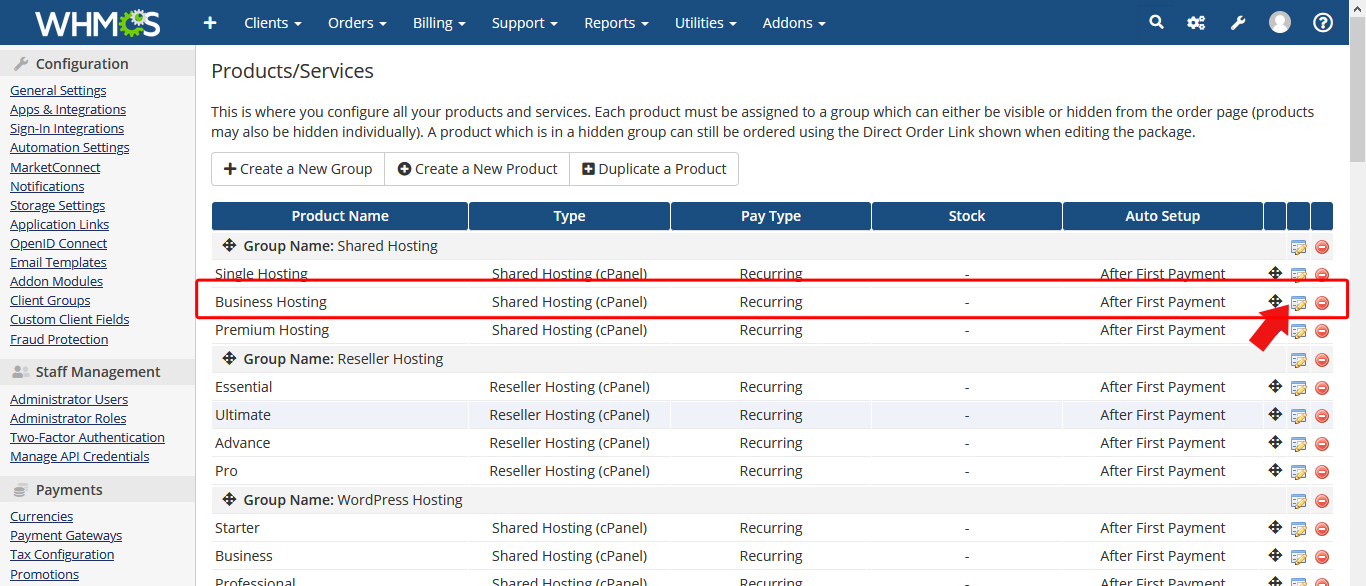
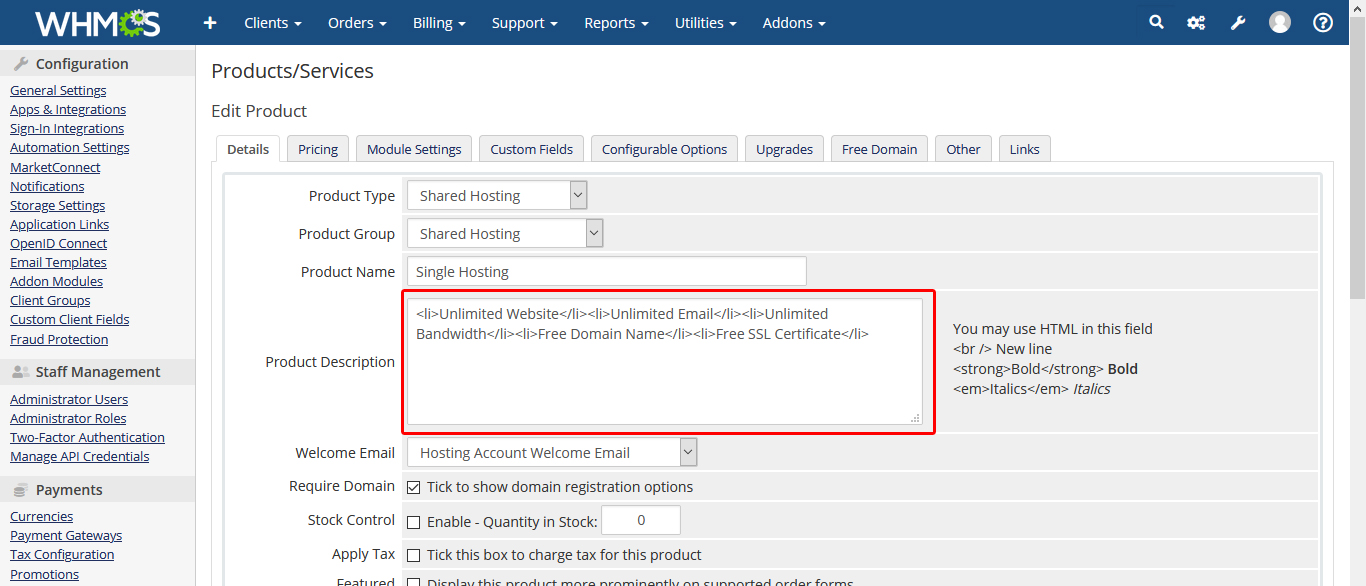
2. Click the edit icon then you can see this bellow image. Copy this code and paste in the product description field like bellow image. You have to change the text or value based on your plan and follow for rest of the plan and product.
 <li>Unlimited Website</li>

                <li>Unlimited Email</li>

                <li>Unlimited Bandwidth</li>

                <li>Free Domain Name</li>

                <li>Free SSL Certificate</li>
How to manage Shared, Reseller, Cloud, VPS, Dedicated, WordPress Product Price
In this Hooks folder, you will get PHP file "sharedhosting.php" "resellerhosting.php" "cloudhosting.php" "dedicatedserver.php" "vpshosting.php" "wordpress.php". all pages product price manages from those files.
We have manage hosting or product price on the services pages. We have managed by the hooks ("sharedhosting.php" "resellerhosting.php" "cloudhosting.php" "dedicatedserver.php" "vpshosting.php" "wordpress.php").
In those files, you can see sharedhosting_products_hook function ->where('tblproducts.gid','1'). This line manages which product group price show in the Shared Hosting Page. Number '1' is the product group id.
How to find out product group id number:
Go to your WHMCS admin panel then Setup>Products/Services>Products/Services
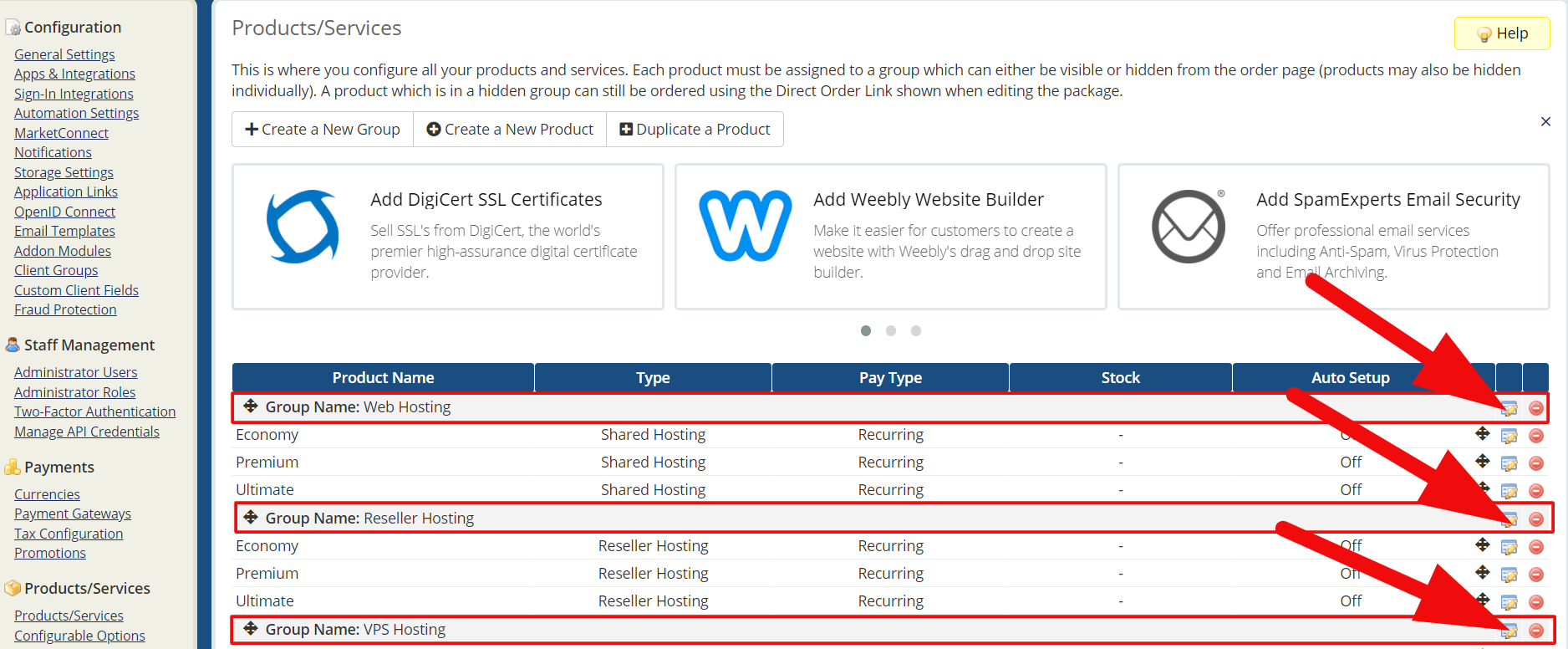
If you mouse hover over on group icon then you can see the product group id.
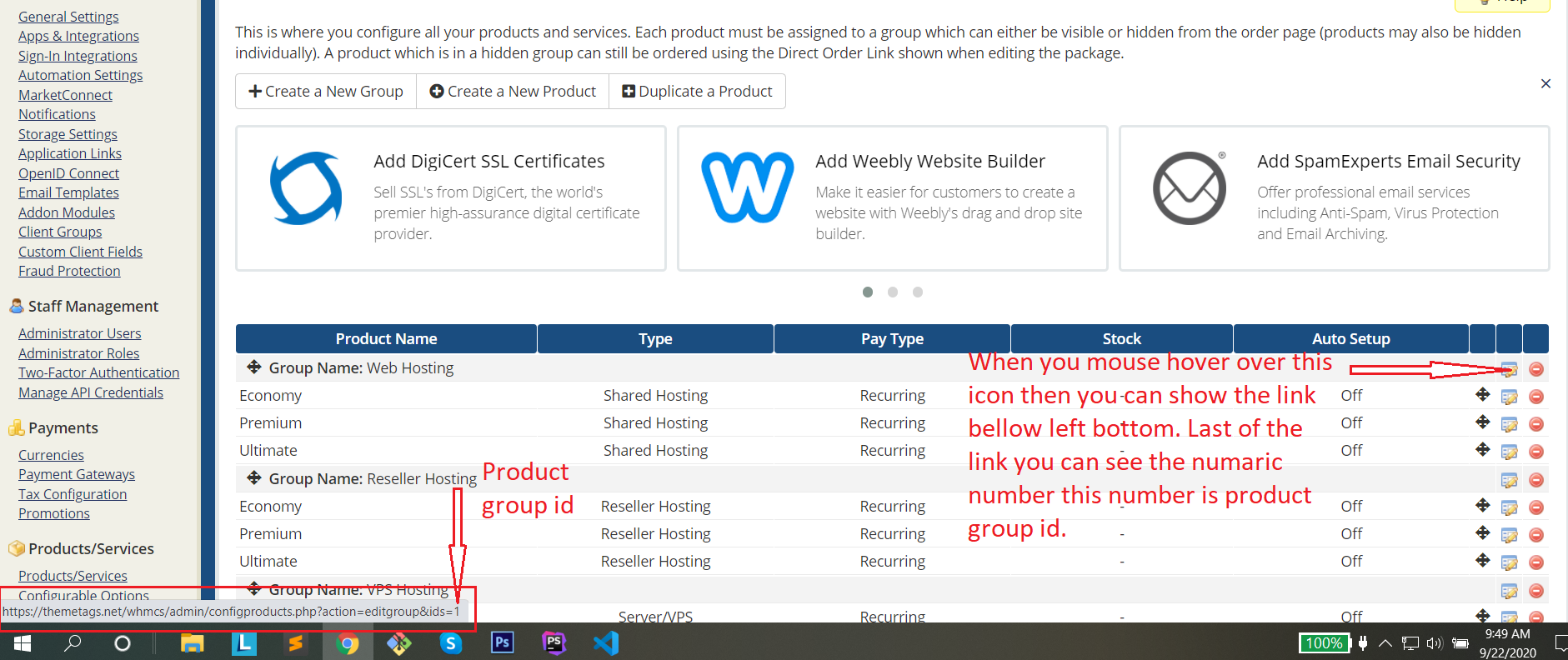
Go to the sharedhosting.php file in the hooks folder then replace that group id with your product group id.
After updating the sharedhosting.php file, you will see that product group price.
Client Area overdue message
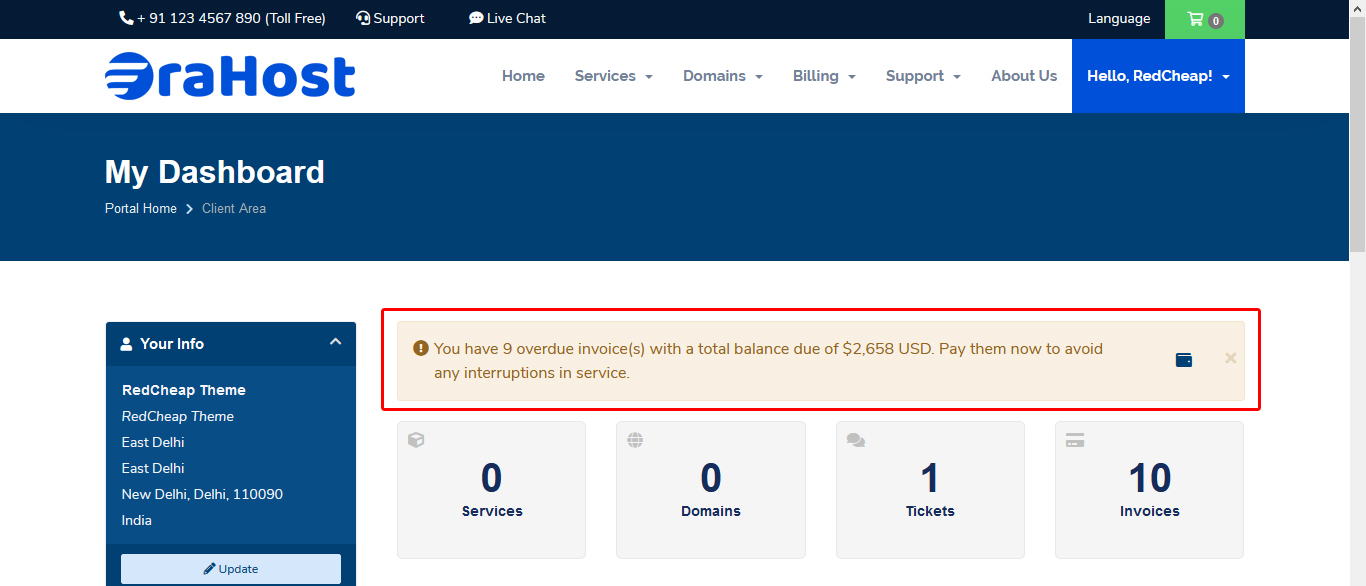
In this clientAreaPanel.php file, you can see the few options like 'color', 'btn-text', 'btn-link', 'btn-icon'. We have managed the pay information by those. You need to replace the 'btn-link' with your link.
To check it, login to the client area panel fist then you can see the overdue message alert box on top. If you have an overdue invoice then you will see like below:
How to Configure Menu (menu.php)
We have customized the menu using on menu.php in the hooks folder.
For more details: https://docs.whmcs.com/Editing_Client_Area_Menus
How to Configure Domain Price (pricetable.php)
In the hero section, Domain page, we have added domain lists like .com, .net, .org, etc, with a price. We have managed the domain price list from the pricetable.php hook file.
Before that, you need to make sure that you have set the domain price from your admin panel. Go to Setup>Products/Services>Domain Pricing.
Click the pricing and set the domain price.
How to add pages Title, Decription and Meta Keywords (redcheap-seo.tpl)
We follow the best SEO practices so that your site always ranks good on search engines. Our WHMCS theme allow you to add Title, Decription and Meta Keywords as per your website requirement. You can customize the page you want and add title, decription and meta Keywords accordingly.
Go to WHMCS >> templates >> theme >> includes >> redcheap-seo.tpl.
v8.13.0 - May 2025 (Convert into in a Child theme)
Important Note:
We have updated this WHMCS theme to a Child Theme structure. As a result, many files have been removed or restructured. Before updating, please ensure you take a full backup of your existing files to prevent any data loss or customization issues.
- New Update Version 8.13.0
- Changes on WHMCS >> templates >> theme below files
clientareahome.tpl- Changes on WHMCS >> templates >> orderforms >> redcheap_professional below files
checkout.tpljs >> base.jsjs >> scripts.jsjs >> scripts.min.js
v8.12.0 - January 2025
- New Update Version 8.12.0
- Changes on WHMCS >> templates >> theme below files
css >> store.cssjs >> scripts.jsjs >> scripts.min.jsstore >> order.tplstore >> ssl >> index.tplstore >> ssl >> shared >> certificate-item.tplstore >> ssl >> shared >> nav.tpl- Changes on WHMCS >> templates >> orderforms >> redcheap_professional below files
includes >> product-recommendations.tpljs >> base.jsjs >> scripts.jsjs >> scripts.min.jsmarketconnect-promo.tpl